Smart Shape
Smart Shape allows you to correct freehand drawn lines into clean lines and shapes.
You can use Smart Shape with most drawing tools, as well as tools such as the Selection pen, Balloon pen, and the Ruler pen.
You cannot use Smart Shape with the following operations:
·Drawing straight lines by holding down the Shift key.
·Drawing on 3D objects.
·When Erase on all layers is enabled under "Erase" in Advanced Tool Settings.
·Drawing while snapping to rulers or grids.
Memo | You can use Smart Shape if you are using the Symmetrical ruler. |
Drawing lines with Smart Shape
Draw a line with a drawing tool, then hold the pen or mouse down (long press) at the end of the stroke. The line will correct itself after a moment.
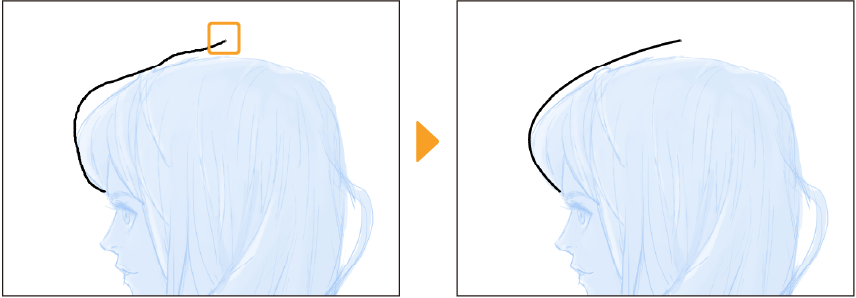
After the line corrects itself, you can adjust the position of the end point by dragging.
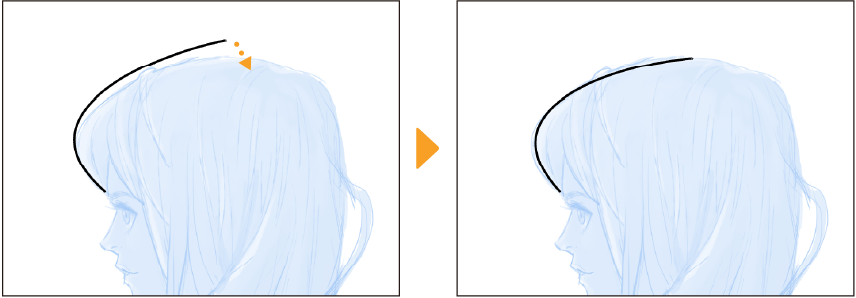
Release your hold on the pen to display the Smart Shape launcher.
Tap on the launcher to switch to editing mode. In editing mode, handles appear around the line, and control points appear on the line. See "Editing mode with Smart Shape" for more on how to use editing mode.
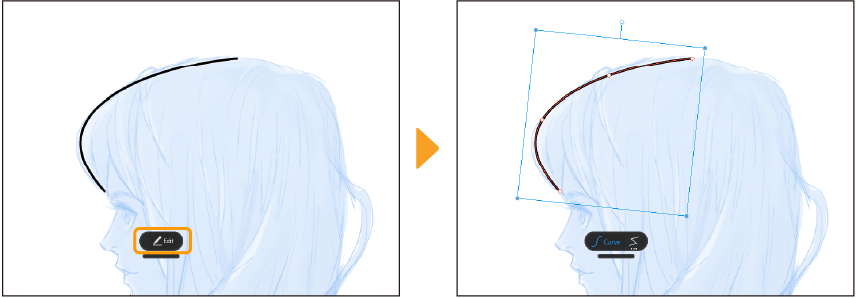
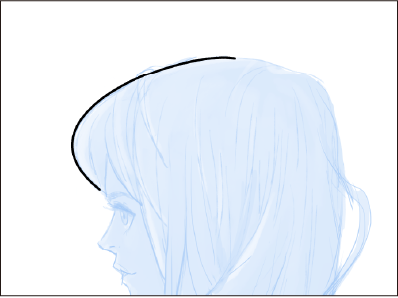
After you finish editing, tap outside of the canvas or on a palette to confirm the shape of the line.
Drawing shapes with Smart Shape
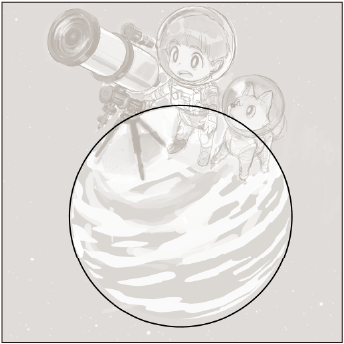
For drawing shapes, use a drawing tool to draw the rough outline for circles and polygons. Then hold the pen in place at the end of the stroke. The line will correct itself into a shape after a moment.
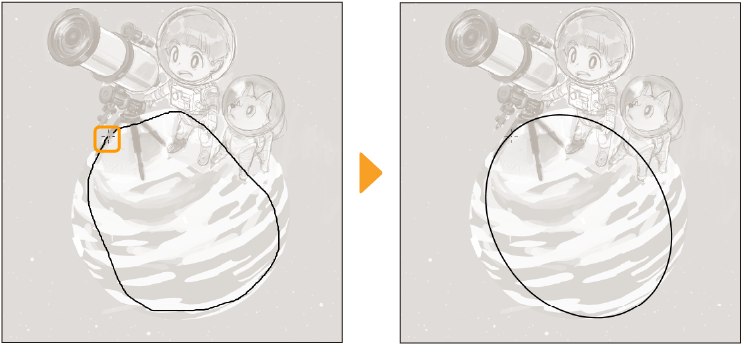
After the shape corrects itself, you can adjust the size and angle of the shape by dragging.
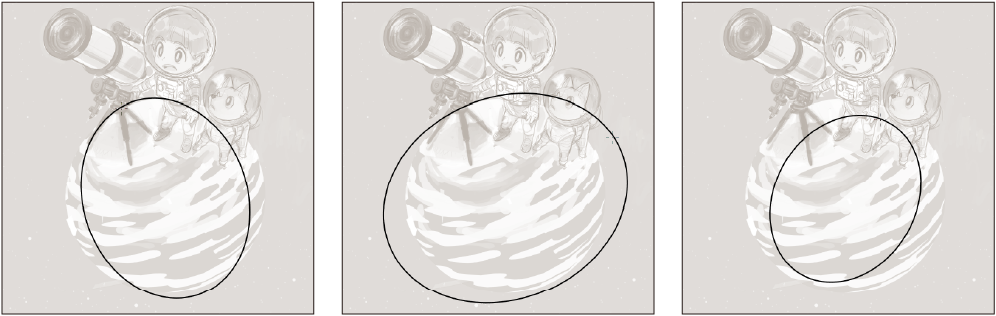
While adjusting the shape, you can hold down the Shift key to create perfect circles from circles, regular polygons from polygons, and squares or rectangles from quadrilaterals. On tablets such as the iPad, use the Edge keyboard to press the Shift key.
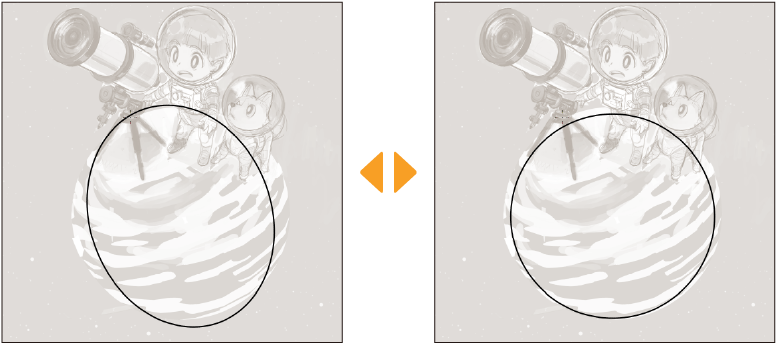
Release your hold on the pen to display the Smart Shape launcher.
Tap on the launcher to switch to editing mode. In editing mode, handles appear around the shape, and control points appear on the line. See "Editing mode with Smart Shape" for more details.
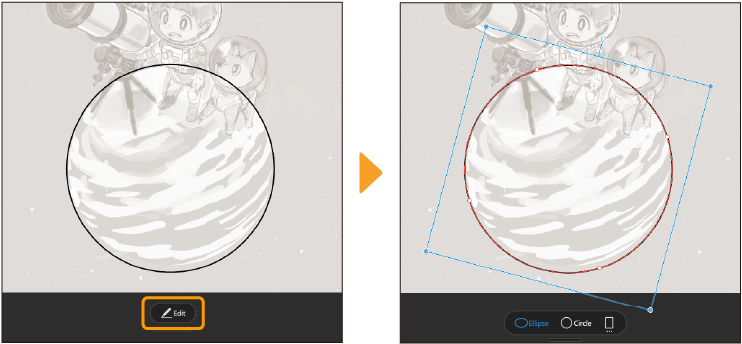
After you finish editing, tap outside of the canvas or on a palette to confirm the shape.
Editing mode with Smart Shape
Changing the shape of lines and shapes
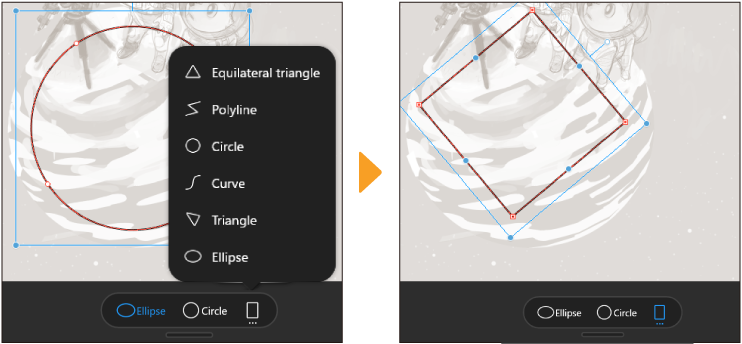
You can select which form you want to change your line or shape into from the Smart Shape launcher. If there are many shape options, you can tap the “...” icon on the far right to display a pop-up and select a shape.
Adjusting the angle and size of the shape
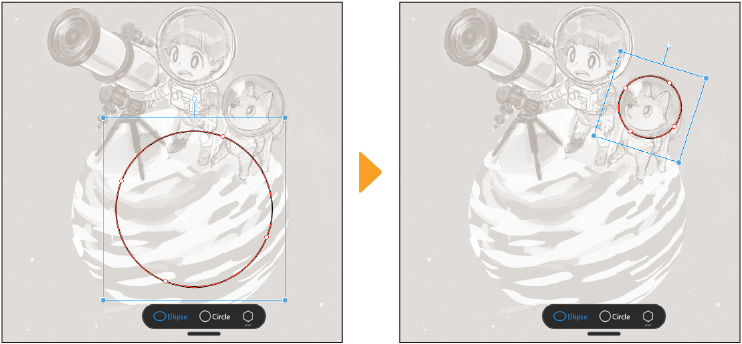
Drag the handles around the line to adjust the angle and size of the entire line.
Controlling the adjustment is the same as the Edit menu > Transform Resizing an object, Rotating an object, and Moving an object
Adjusting the curvature of lines
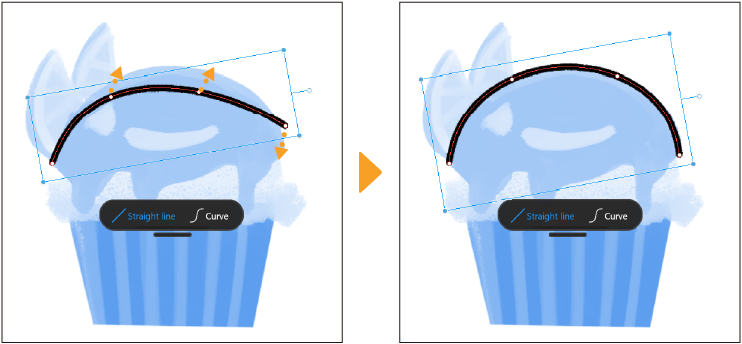
You can drag the control points on a line to adjust the curvature.
Turning Smart Shape on or off
To enable Smart Shape, turn it on from Preferences > "Tools" > Hold to create figures. You can turn off Smart Shape by removing the check from this box.
You can also set the following settings for Smart Shape:
·How long to hold before a stroke switches to Smart Shape
·Displaying or hiding the Smart Shape launcher