Customizing the Tool and Tool Group palettes
You can freely customize the tool and tool groups, such as moving tools to different tool groups. You can also adjust how tools are displayed in the Tool group palette.
Memo | This section explains how to customize the settings inside the Tool and Tool Group palettes. For information on moving entire palettes, changing palettes to pop-up, and so on, see "Palettes". |
Moving tools
To move a tool or tool group, hold and drag it to the desired new location. You can rearrange the tools in the tool list, or move them to different tabs or groups.
You can move multiple tools at once by holding Ctrl or Shift to select multiple tools, or turn on Select with checkbox and select multiple.
The red line shows where the tool will be moved to.
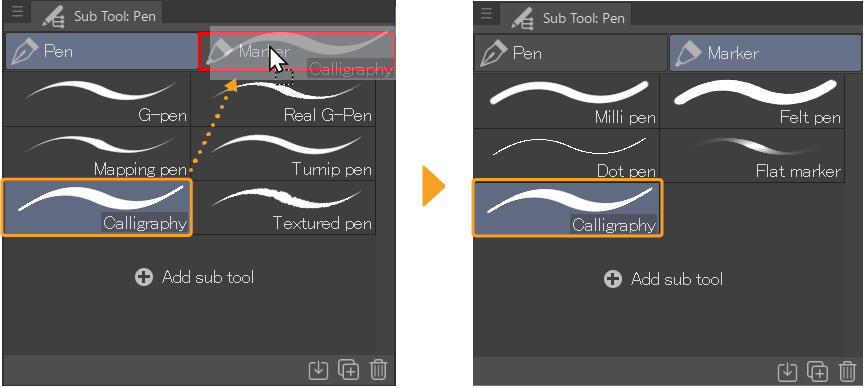
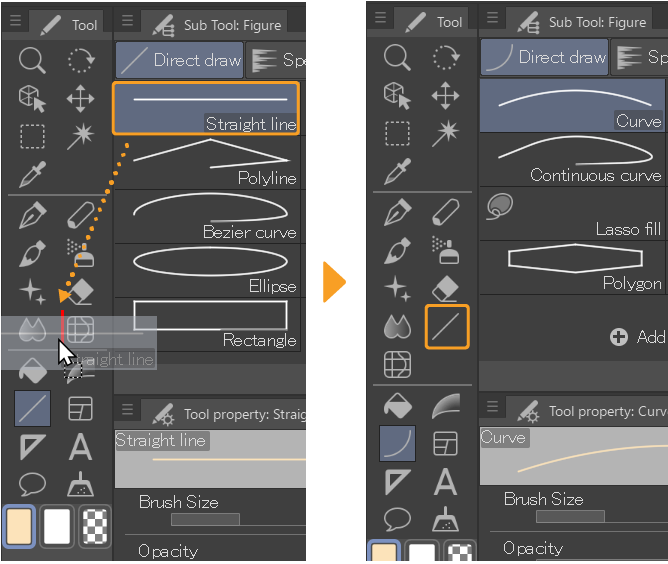
You can also drag tools and tool groups to the Tool palette to create a new tool.
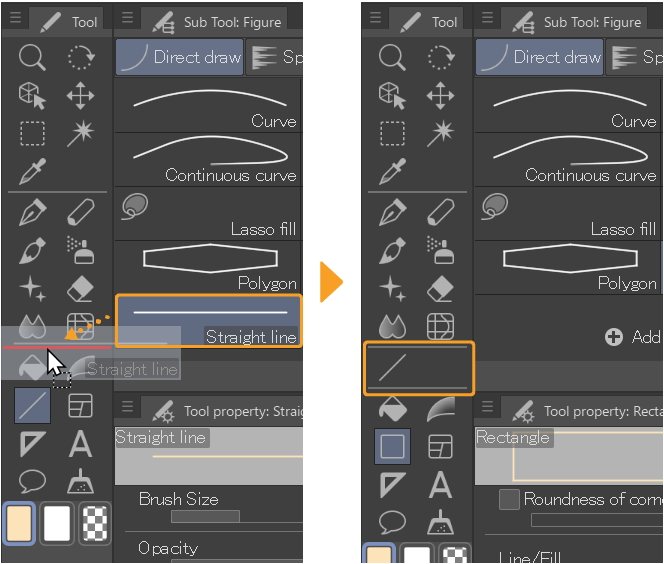
If you drag and drop a tool onto a separator, a new section will be created with a separator above and below.
Memo | In the Tool and Tool Group palette menus, you can select whether to move icons by simply dragging, or by dragging and holding Ctrl. The default setting is dragging only. To change the setting, go to the palette menu > Change order and choose from Drag or Ctrl & Drag. |
Deleting and adding tools
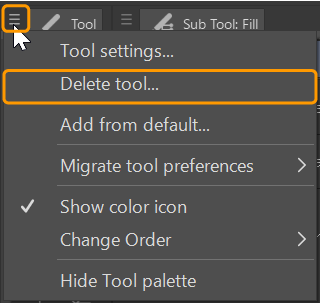
To delete a specific tool from a tool group, select it and open the Tool Group palette menu by tapping the menu icon at the top left of the palette. From the menu, select Delete tool. When the confirmation message appears, tap OK to delete the tool.
To delete an entire tool category, select it in the Tool palette and open the Tool palette menu, then tap Delete tool. This will also delete all tools within the tool group. When the confirmation message appears, tap OK to delete the tool and all tool groups.
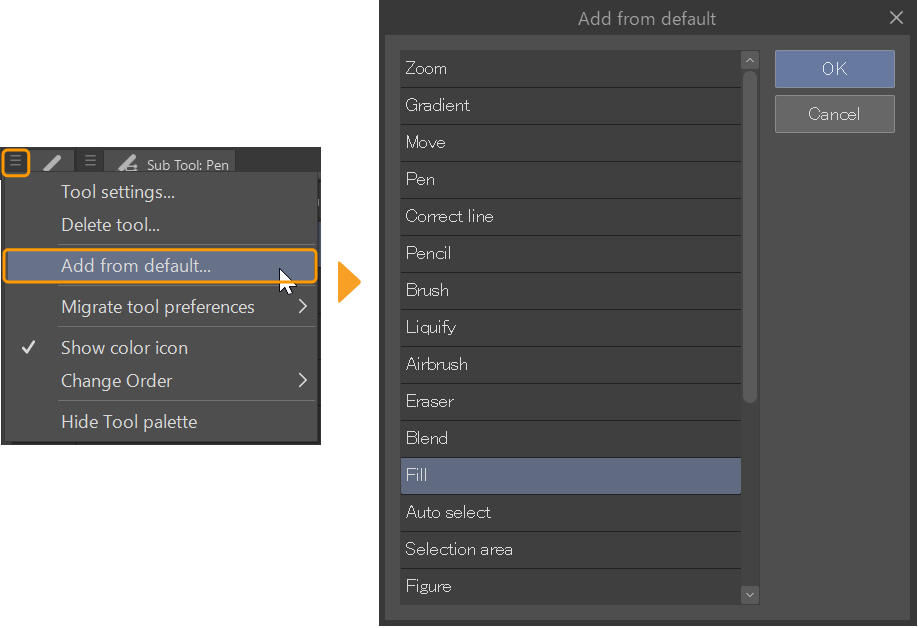
If you accidentally delete a default tool and you want it back, you can add it using the Tool and Tool Group palette menu > Add from default. In the Add from default dialog, select the desired tool from the list and click OK.
Important | The default tools were updated from Ver 1.10.10. If you first installed Clip Studio Paint as Ver. 1.10.9 or earlier and you cannot find a default tool in the Add from default list, it may have been removed from the default tools. You can download previous default tools from Clip Studio Assets here. |
Customizing the color icons
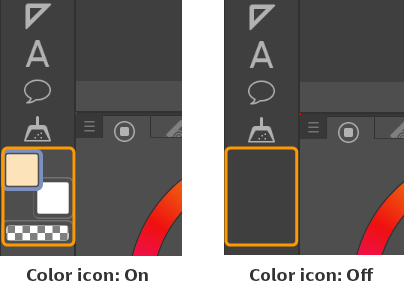
You can change whether the color icons are shown at the bottom of the Tool palette using the Tool palette menu > Show color icon.
This is turned on by default. Uncheck the command to hide the color icons.
Customizing the Tool Group palette
You can adjust how tools are displayed in the tool list using the Tool Group palette menu.
Change the tool preview
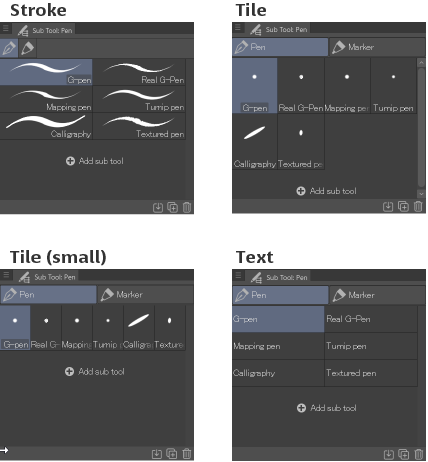
The default tool preview shows a drawing preview for drawing/figure tools and the tool icon for other types of tools. You can change the tool preview from the stroke preview to tiles, small tiles, or text, from the Tool Group palette menu > View.
When set to “Tile” or “Tile (small),” the tool preview will show the brush tip shape for drawing tools.
Show/hide tab names
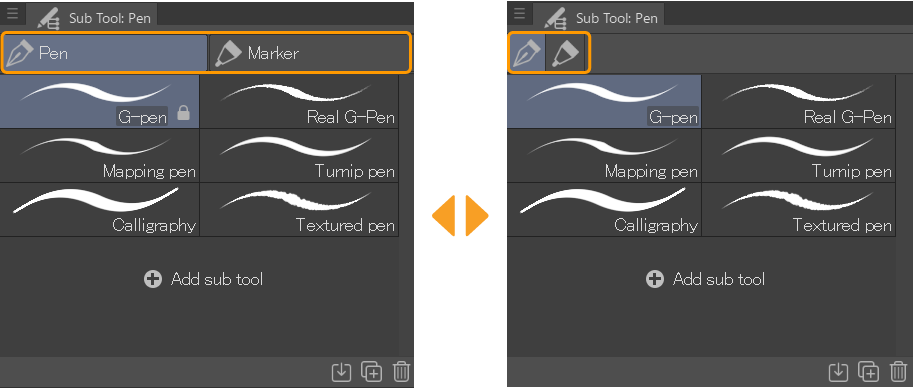
You can show the tab group names by toggling Show tool group name in the palette menu. When turned off, only the tool icon appears in each tab.
Show/hide command bar
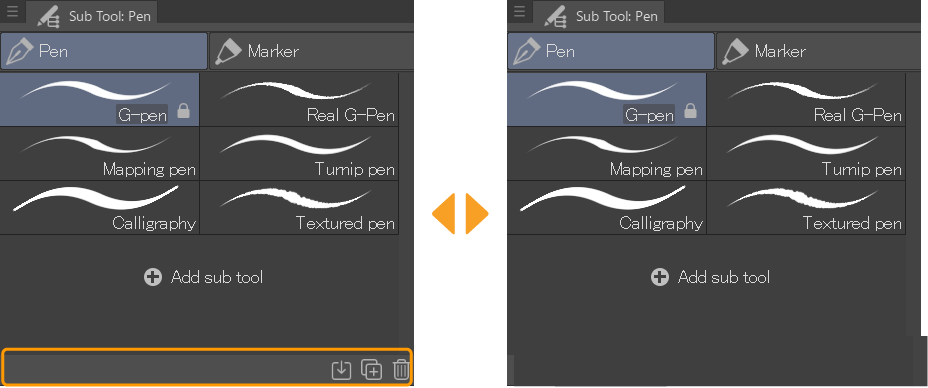
You can hide the command bar at the bottom of the palette by toggling Show command bar in the palette menu.
Show/hide checkboxes
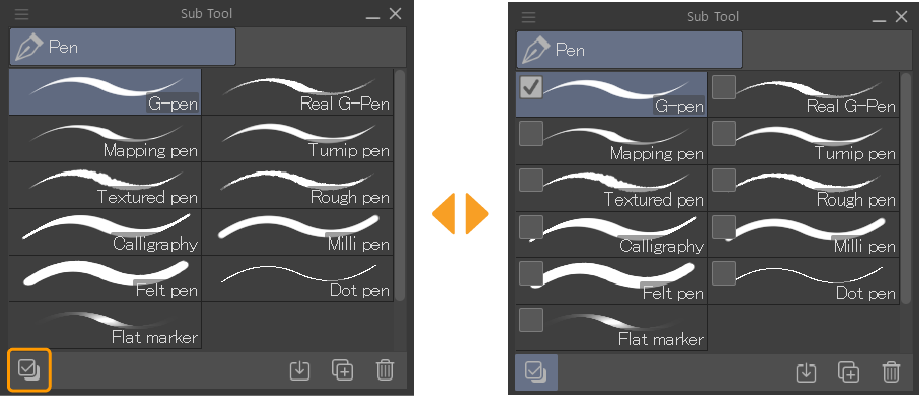
You can show or hide checkboxes beside each tool by toggling Select with checkbox in the palette menu or the icon at the bottom of the Tool Group palette.
Customizing the Tool Settings palette
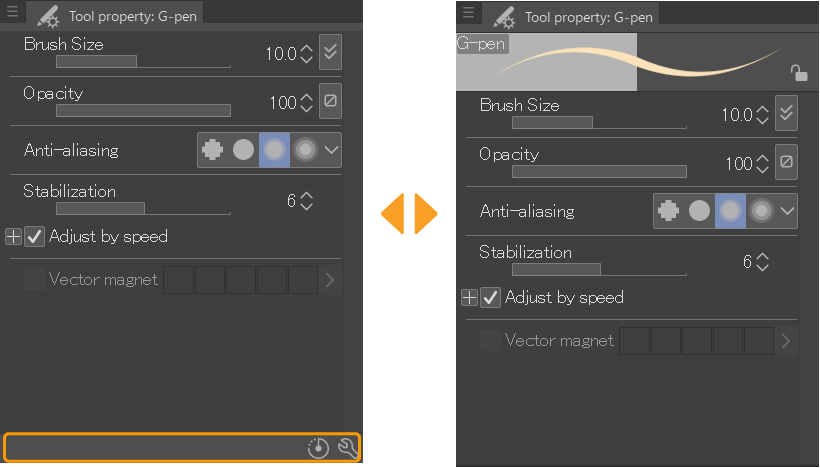
You can adjust how tool settings are shown in the Tool Settings palette.
Show/hide stroke preview
You can show or hide the stroke preview from the Tool Settings palette menu > Show stroke preview.
Switch sliders/indicators
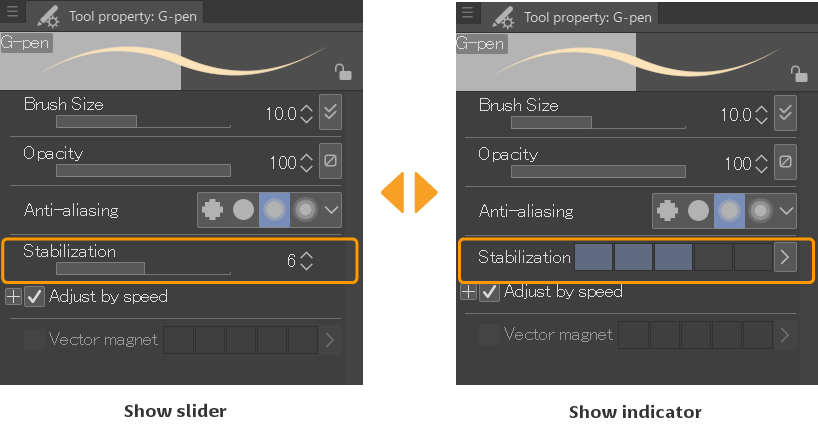
You can switch sliders to indicators and vice versa from the Tool Settings palette or Advanced Tool Settings palette. Go to the setting you want to edit and tap the arrow to the left of the setting name. From the context menu, choose between Show slider or Show indicator.
You can also right-click the setting name to open the context menu.
On Android, the context menu will not appear. Instead, you can change the setting from the Advanced Tool Settings palette menu.
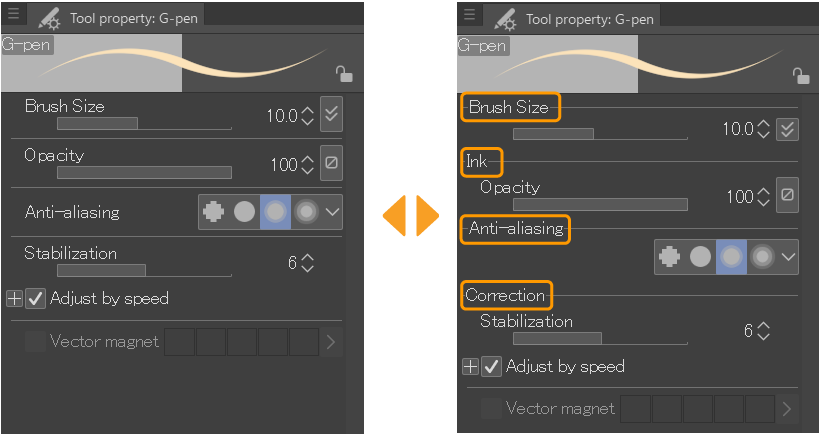
Show setting category name
You can set whether setting category names appear in the Tool Settings palette by toggling Show category in the palette menu.
When turned off, setting names will appear without the category name.
Show/hide command bar
You can hide the command bar at the bottom of the palette by toggling Show command bar in the palette menu.