Setting up touch gestures
Devices that support Windows touch gestures and tablets (iPad/Android/Chromebook) can use touch gestures.
Switching to a touch gesture-friendly screen (Windows/Tablet)
You can switch to a touch gesture-friendly screen on Windows and tablets with large buttons for easy finger operation. Palettes can also be stowed away to increase canvas space for painting.
You can adjust touch operation settings from the Preferences dialog > Interface > Touch Operations.
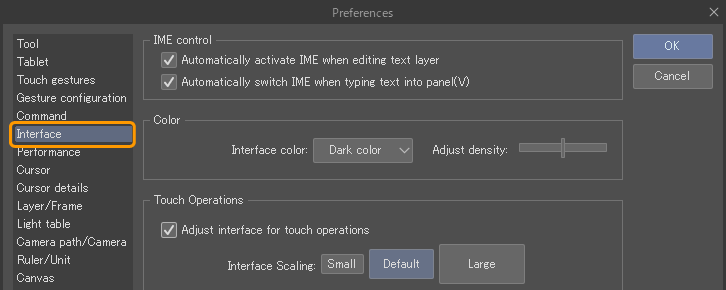
On tablets and other devices (including Windows systems), the touch gesture-friendly screen displays upon first startup.
Switching between pen tools and touch operations (Windows/Tablet)
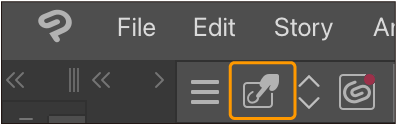
The touch gestures icon on the Command Bar changes the behavior when you tap the screen with a finger.
·When turned on, swiping on the screen with a finger will result in the operation set up in the Modifier Key Settings. By default, it is set to the Hand tool.
·When turned off, swiping on the screen with a finger will operate whichever tool is currently selected.
Changing touch gesture settings
You can change the operations assigned to touch gestures in the Preferences dialog.
On Windows, you can also select between Windows gestures and Clip Studio gestures in Preferences > Gesture configuration. If you select Windows gestures, you can use press and tap instead of the three-finger tap, like a normal Windows tablet.